For the complete documentation index, see llms.txt. Markdown versions of all docs pages are available by appending .md to any docs URL.
Launch the UI
Verified : Code examples on this page have been automatically tested and verified.Find the address that agentgateway serves the UI on, open it, and generate LLM client settings from it.
About
Agentgateway serves the UI on the port of any gateway that you list in the ui section of your configuration file. A generated configuration lists the default gateway, so the UI is served on the gateway port from the first start. Agentgateway logs the address that it serves the UI on when it starts, so the log is the quickest way to find the UI.
A copy of the UI is also served on the admin interface, which is localhost:15000 by default. That copy is a local convenience, and the admin address is loopback-only, so a gateway is what you use to reach the UI from anywhere else. For more information, see UI.
Before you begin
Install standalone agentgateway as a binary, a Docker container, or a Kubernetes Deployment with Helm.
Open the UI
Start agentgateway with a configuration file.
agentgateway -f config.yamlAgentgateway logs where it serves the UI.
INFO app serving UI at http://localhost:15000/uiOpen http://localhost:15000/ui/ in your browser.
The UI opens on the Gateway Overview, which lists the available capabilities (LLM, MCP, and Traffic) and lets you enable the ones you want to operate.
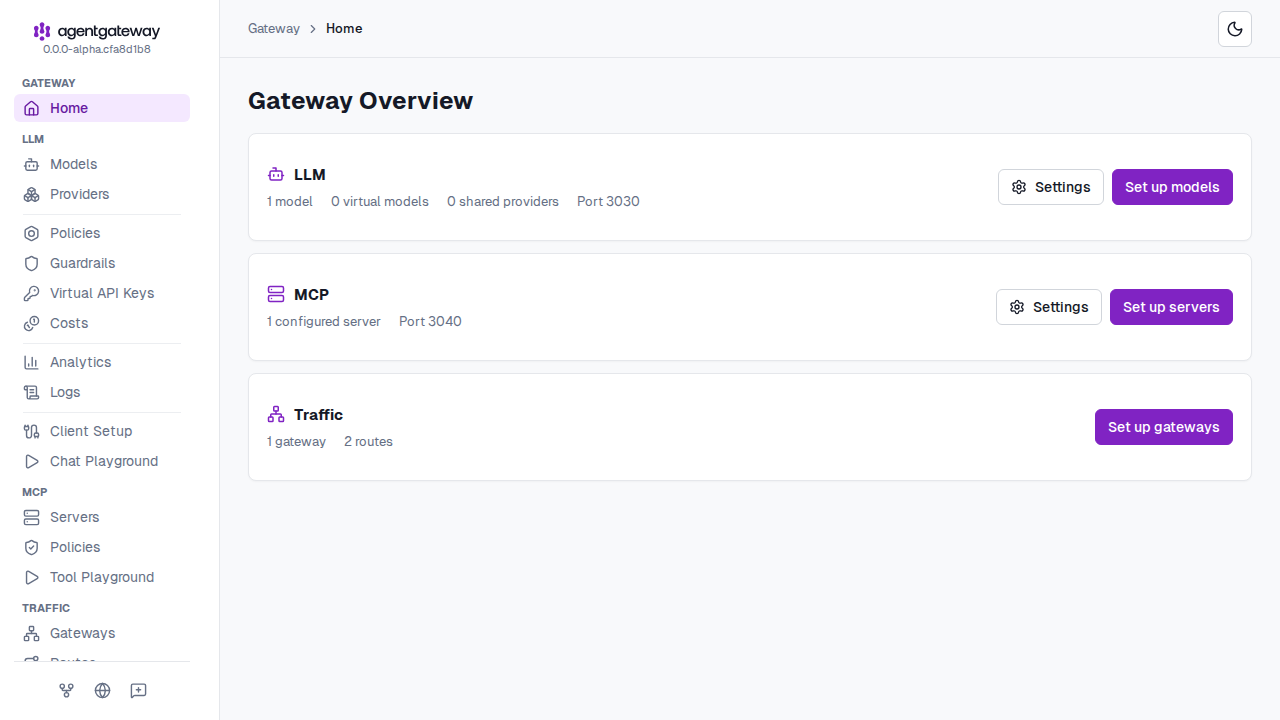
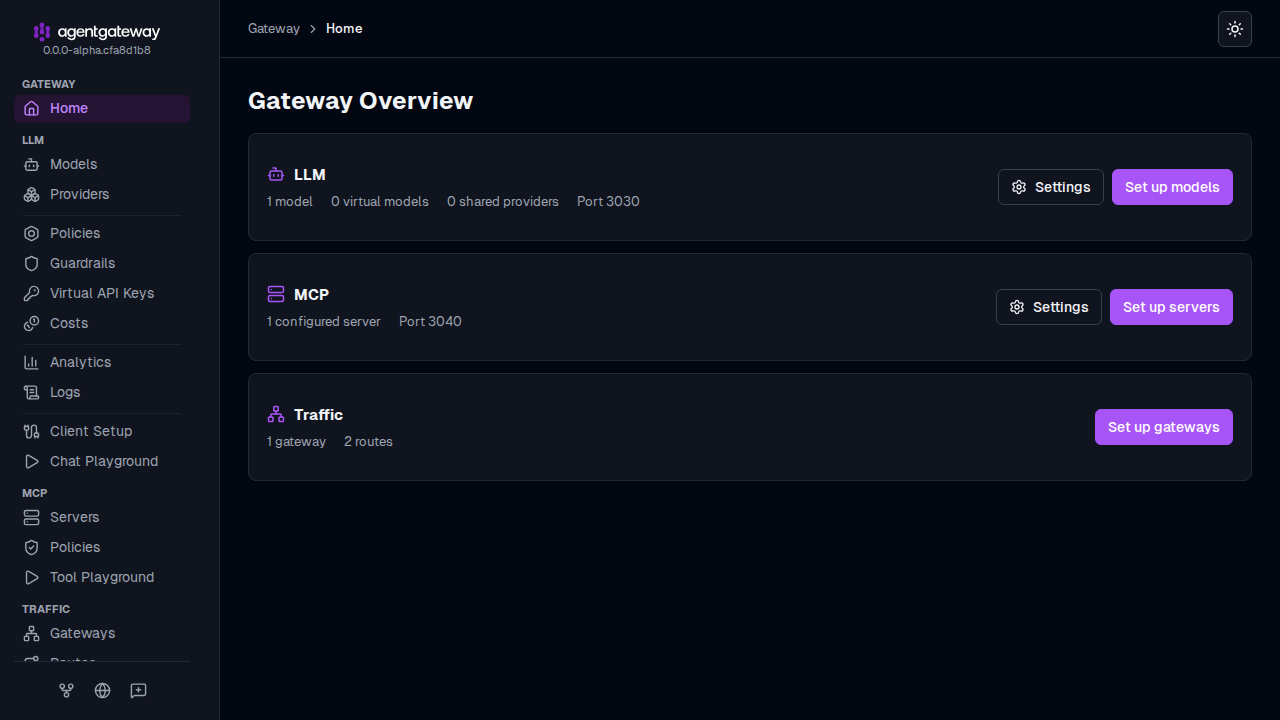
If you started agentgateway with no arguments instead, the generated configuration attaches the UI to the default gateway, so the UI is also served at http://localhost:4000/ui/.
Tour the UI
The sidebar groups the UI into five areas: Gateway, LLM, MCP, Traffic, and Tools. Each page lists the resources in your configuration, and you can add, edit, or delete them in the page. The Gateway area has the Home page. The Tools area has the CEL Playground, Raw Configuration, and Settings pages. The following examples show a configuration with one gateway, two routes, an LLM model, and an MCP server.
Traffic
The Traffic area holds the HTTP gateways and routes that are not LLM or MCP traffic.
Gateways: Shows each gateway with its port and protocol. Click Add gateway to open a new port.
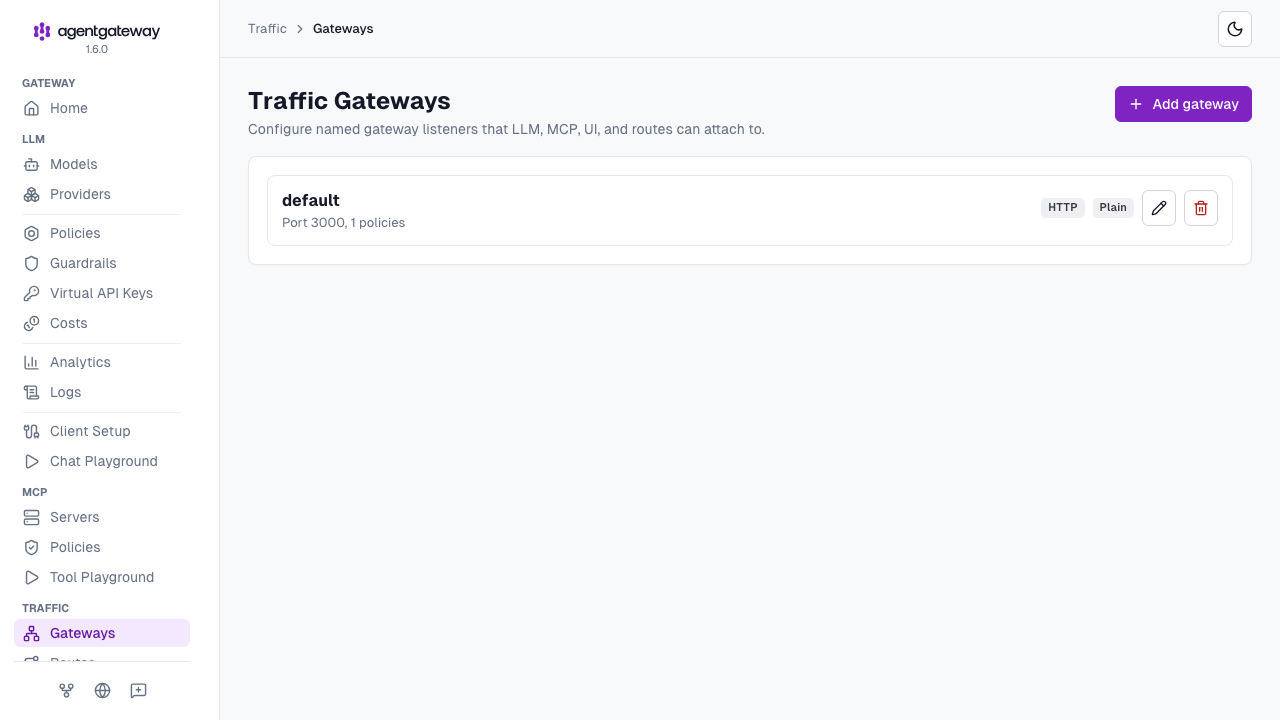
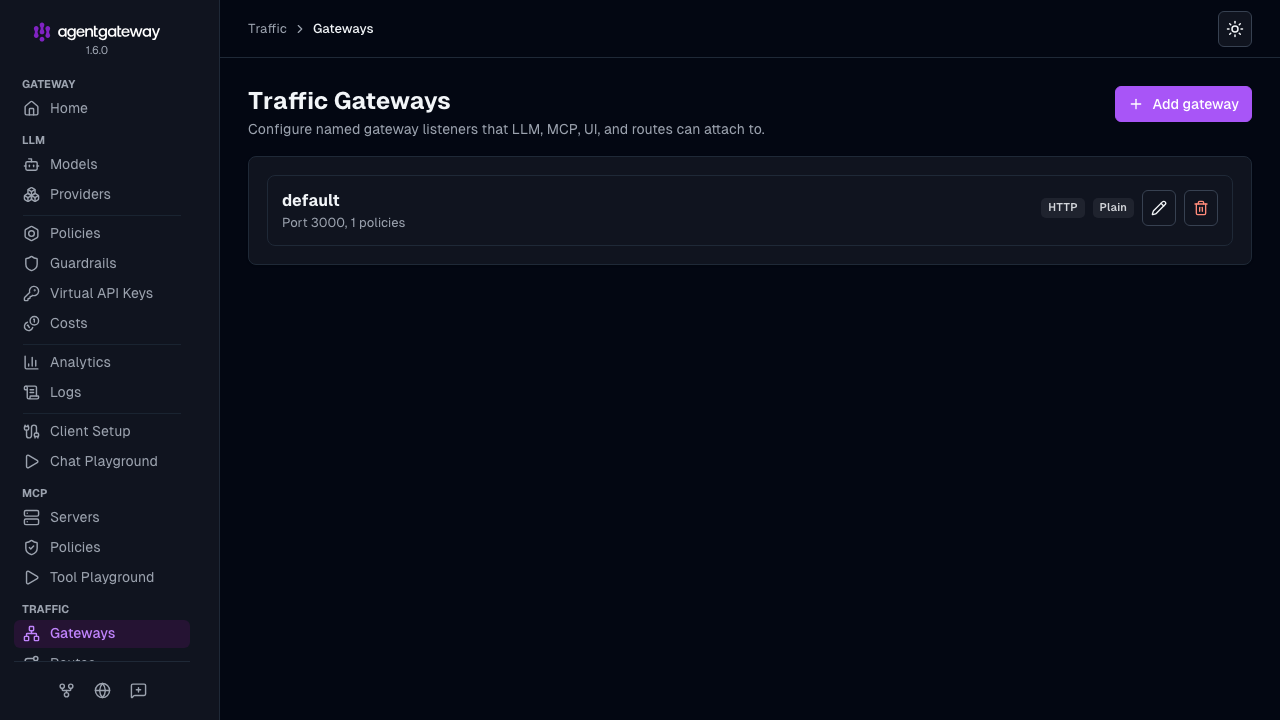
Routes: Lists every route with its gateway, path match, and backends. A route with more than one backend splits traffic between them by weight.
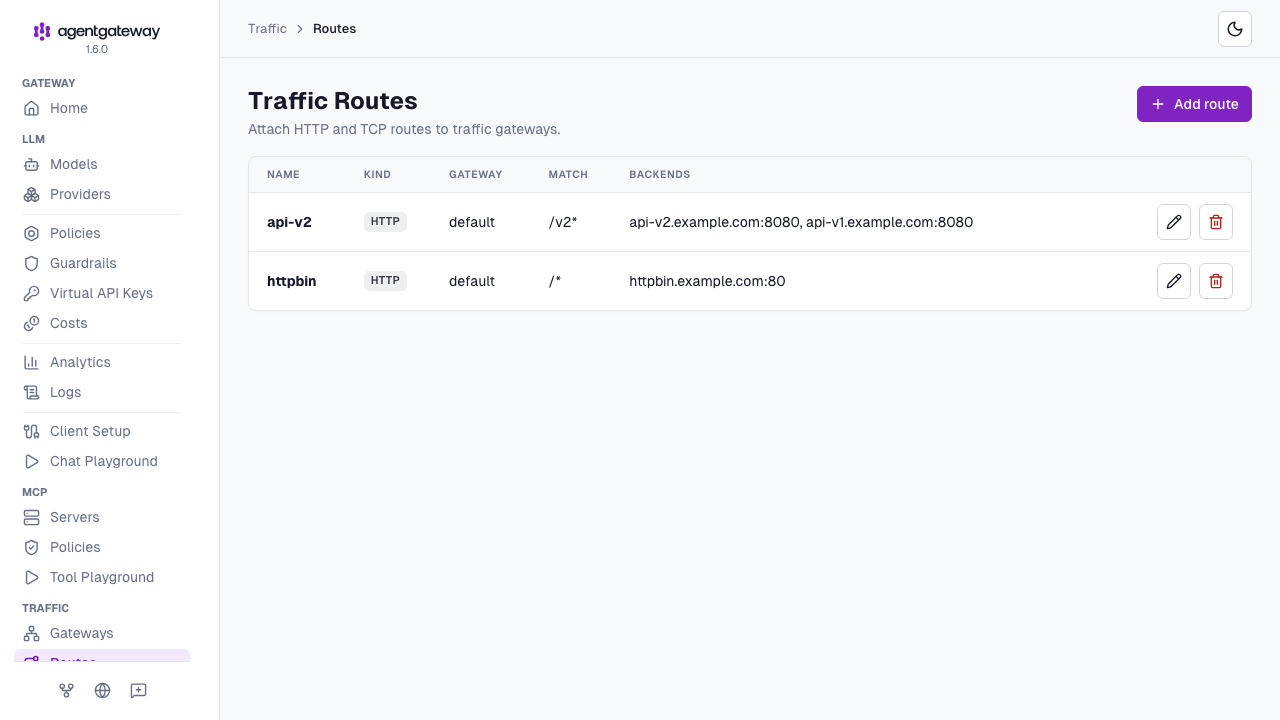
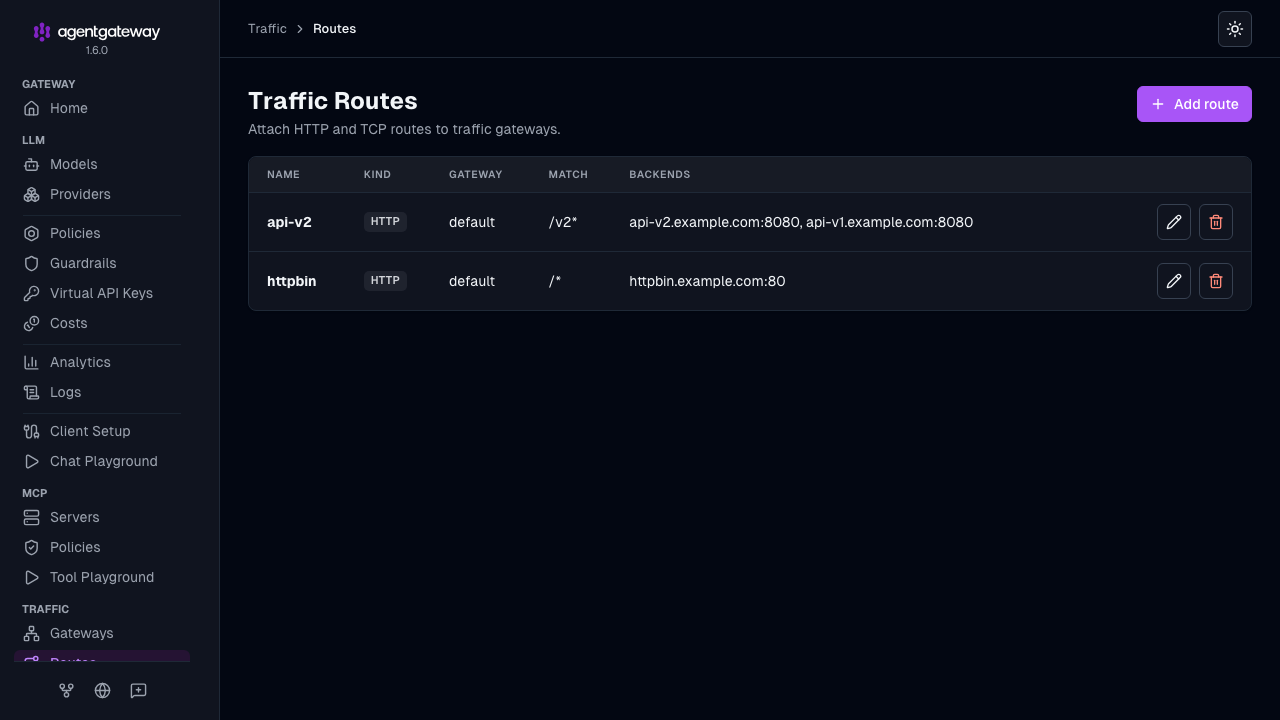
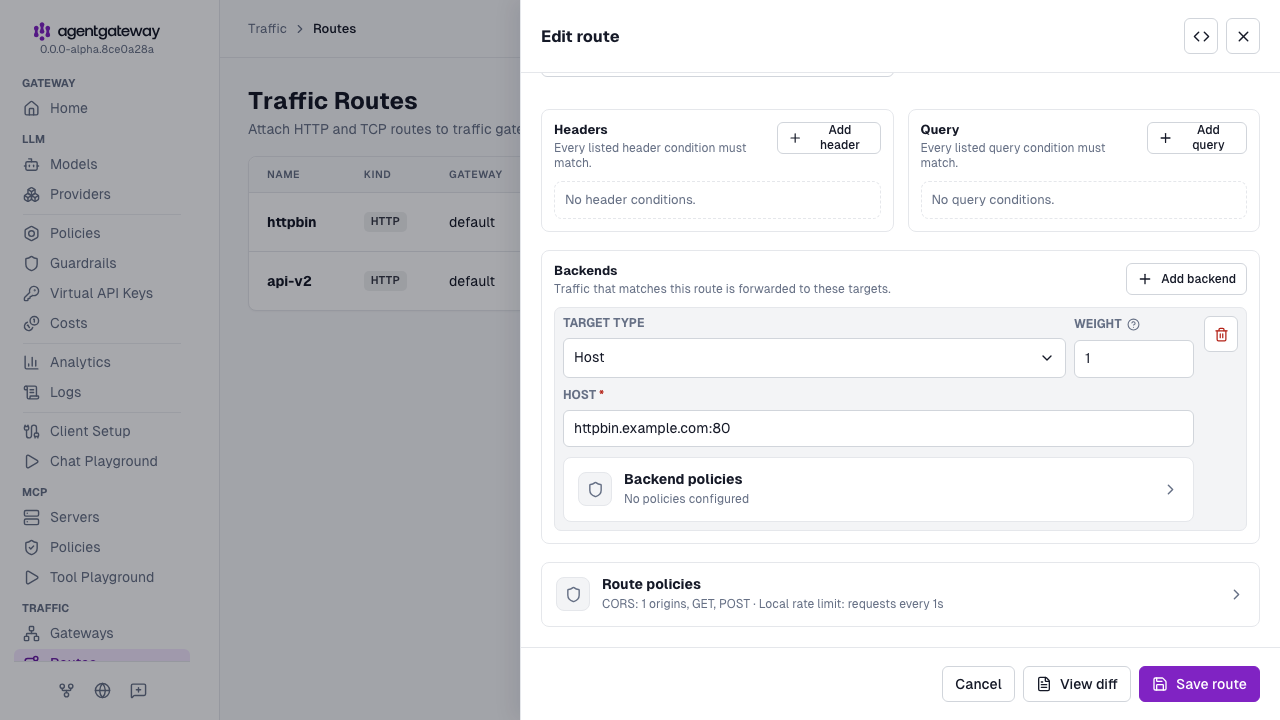
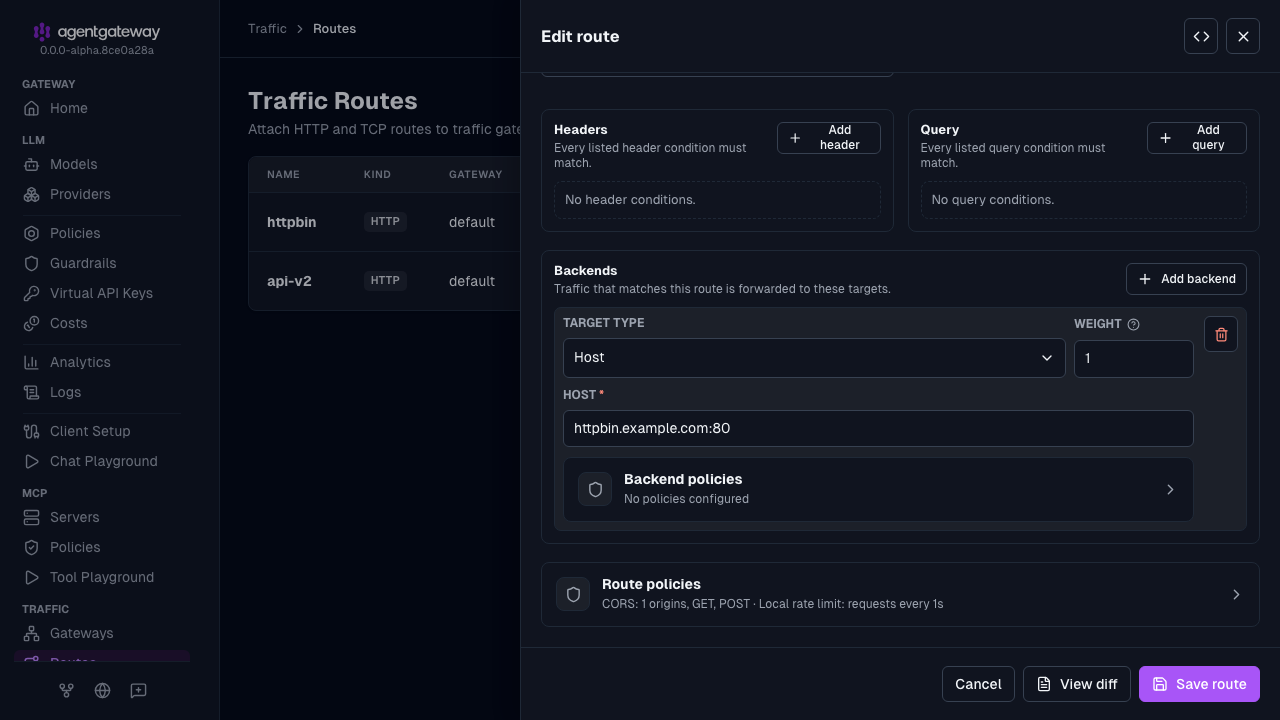
Route policies: To change a backend or a policy on a route, click the Edit route icon for the route. The Edit route drawer shows the backends, a Route policies summary such as CORS and rate limits. Click View diff to compare the change with your current configuration before you save.
Note
In standalone mode, you set route policies in the Edit route drawer. The sidebar has no Traffic > Policies page in standalone mode. That read-only page exists only for gateways that get their configuration from a control plane, such as agentgateway on Kubernetes.
LLM
The LLM area configures the models that clients can request and the policies that apply to all LLM traffic.
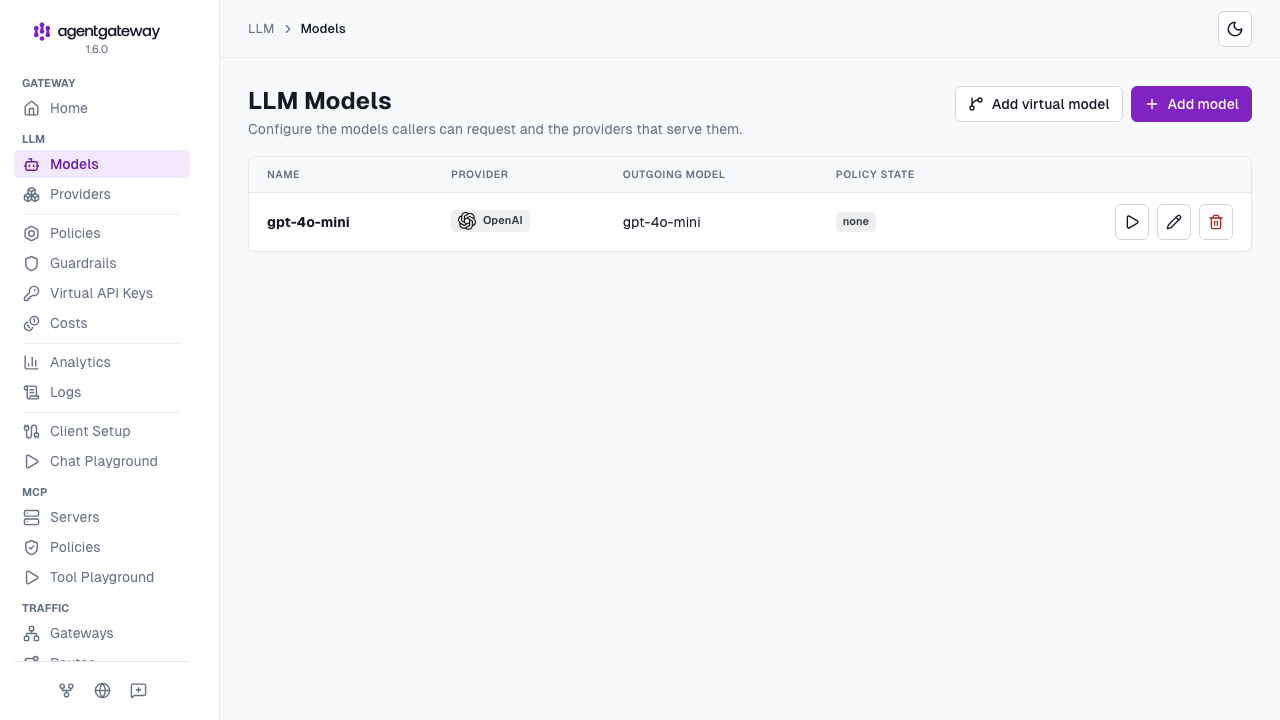
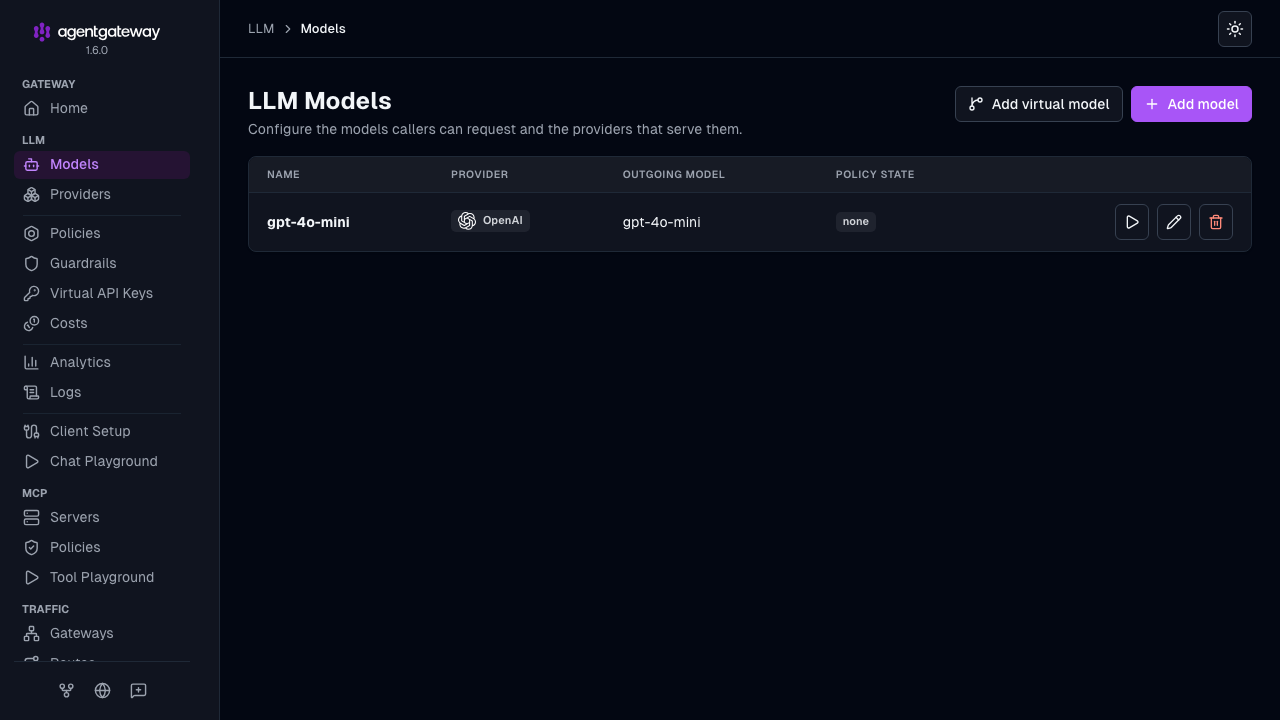
Models: Lists each model with its provider and the model name that the request uses with that provider. Click the play icon to try a model in the Chat Playground.
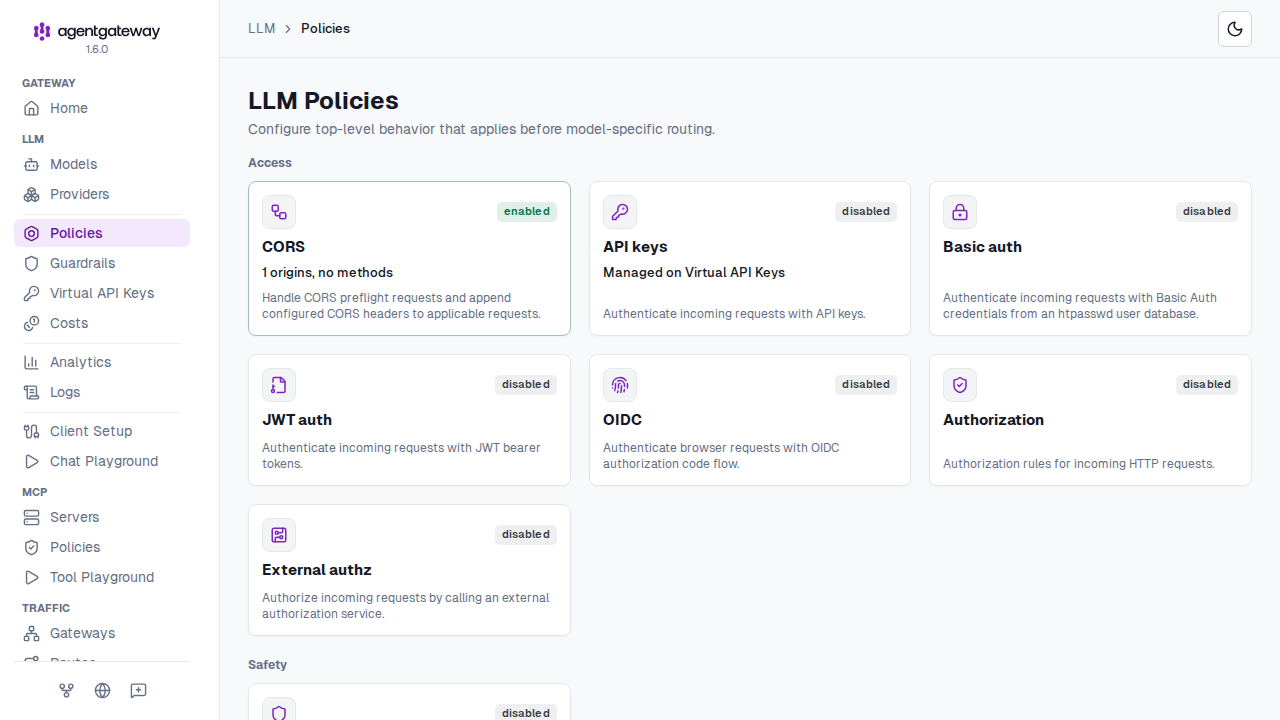
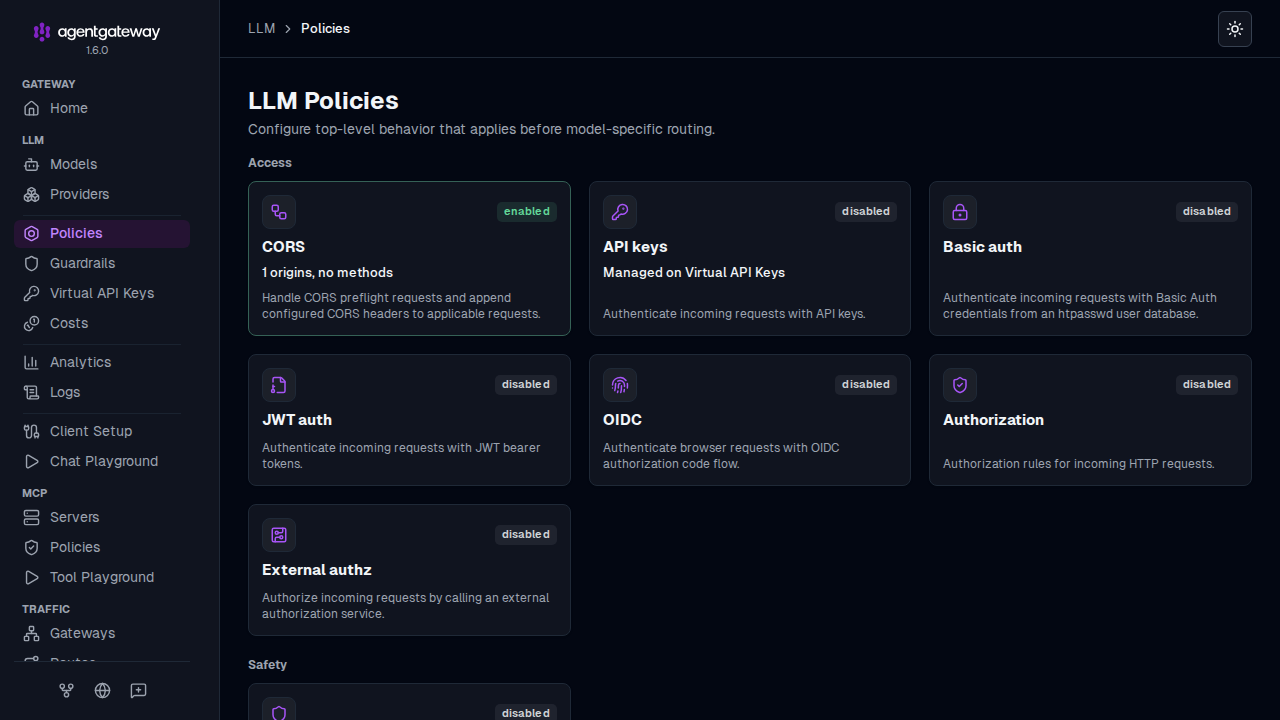
Policies: Shows each policy type as a card that is marked enabled or disabled. Click a card to configure that policy for all LLM traffic.
The LLM area also has pages for providers, guardrails, virtual API keys, costs, analytics, and logs. For more information, see the LLM quickstart. To replace the value of a virtual API key, see Rotate a virtual key.
MCP
The MCP area configures the MCP servers behind the gateway and the policies that apply to MCP traffic.
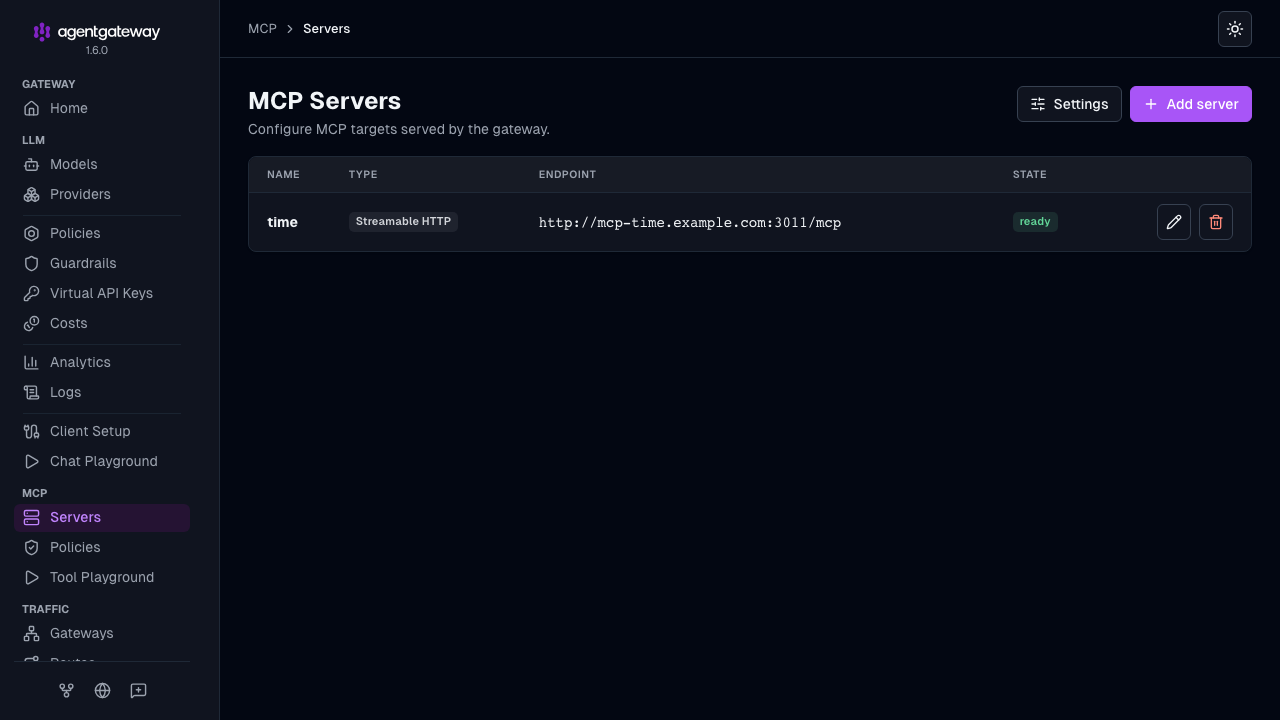
Servers: Lists each MCP server with its transport, endpoint, and connection state. A server in the ready state is connected, and its tools are available in the Tool Playground.
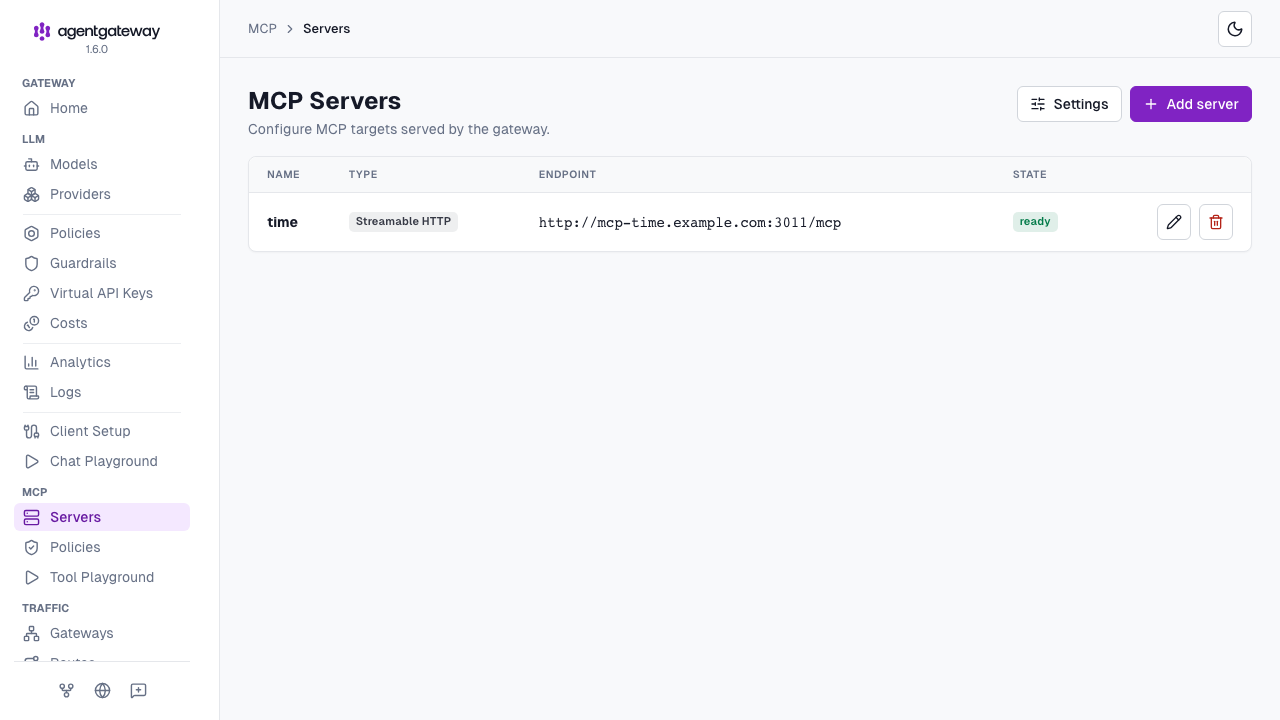
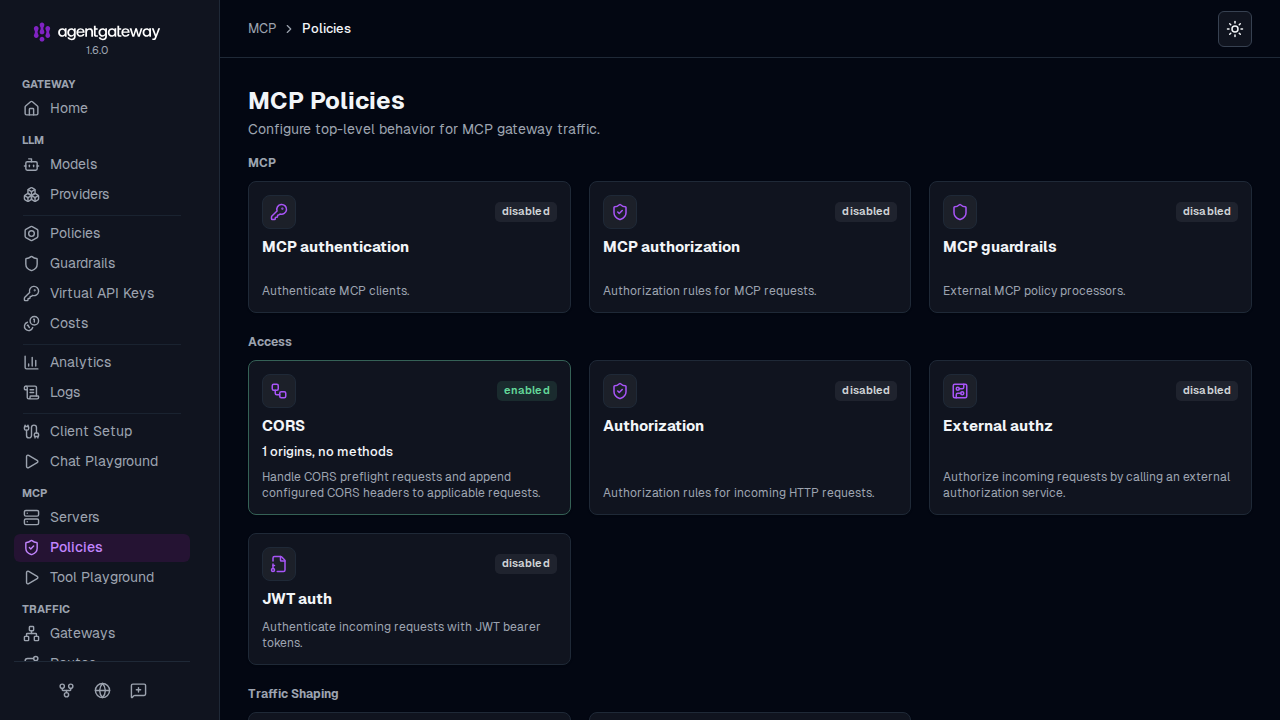
Policies: Shows the MCP policy types as cards, including MCP authentication, MCP authorization, and CORS. Click a card to configure that policy.
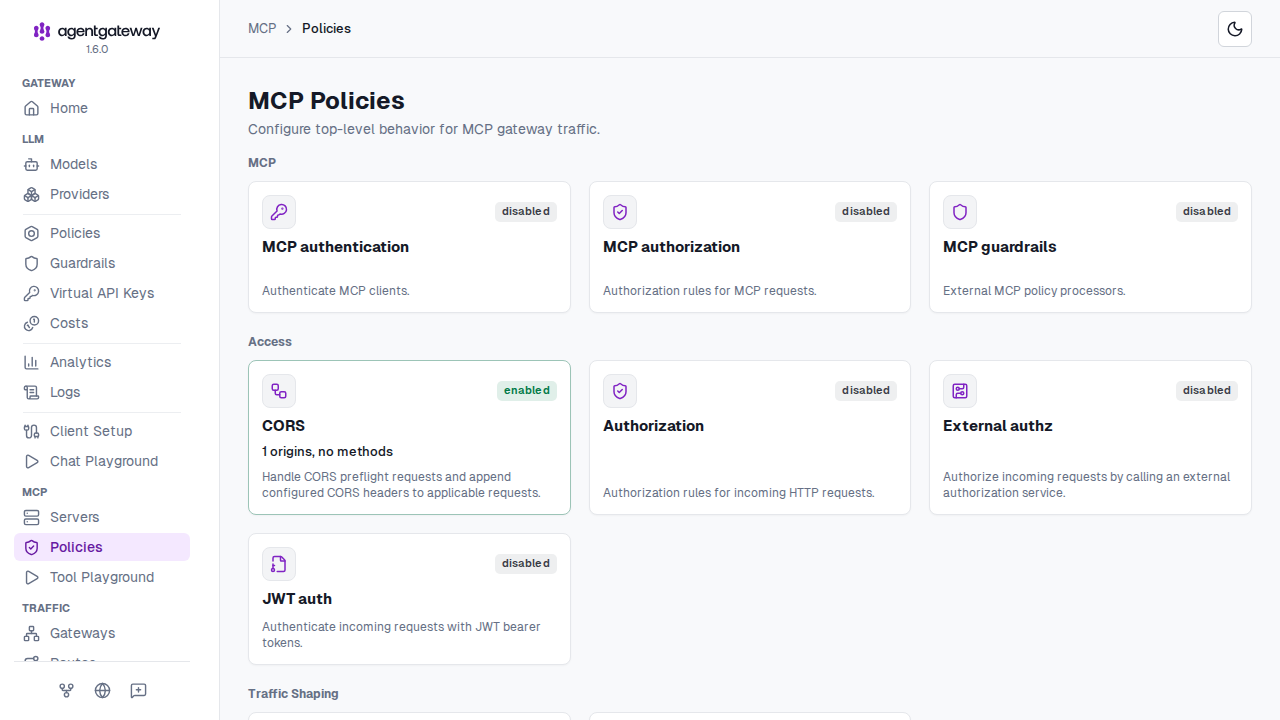
For more information, see the MCP quickstart.
Settings
The Settings page, under Tools, holds the settings that apply to the whole gateway. The page has two sub-pages, and http://localhost:15000/ui/settings opens the first one.
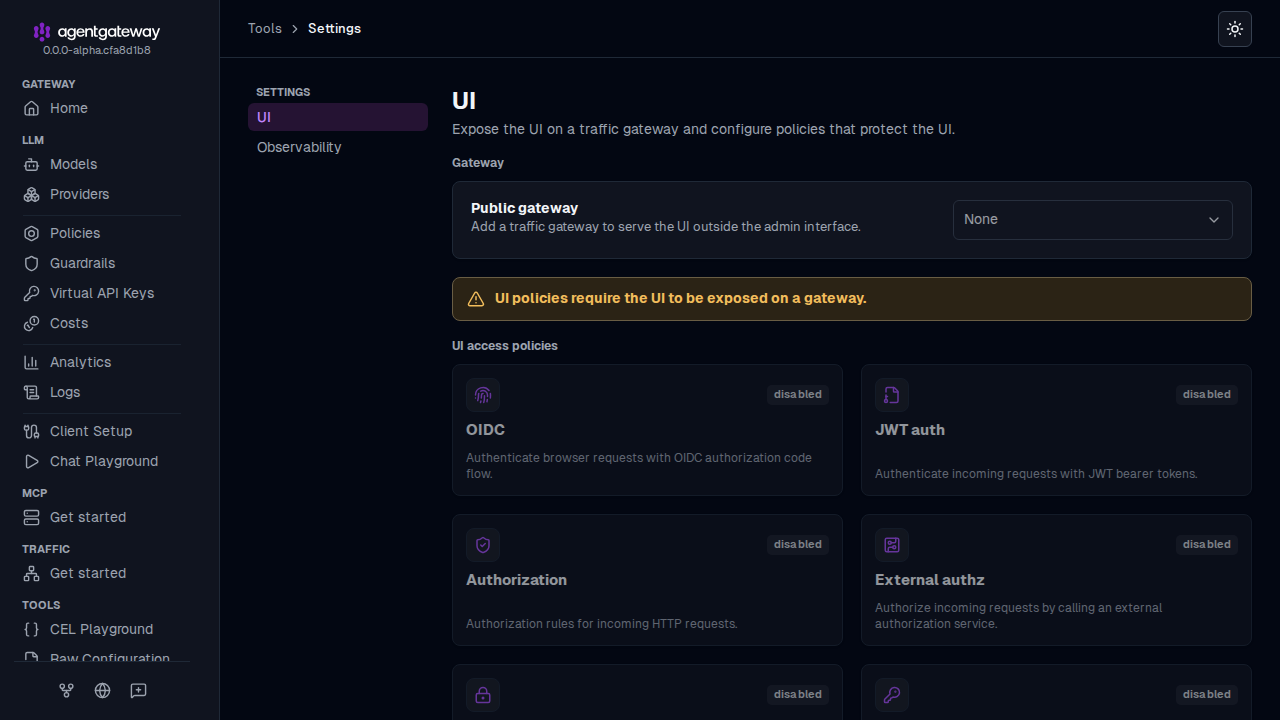
UI: Selects the Public gateway that serves the UI in addition to the admin interface. The page also shows the UI access policies, such as OIDC, JWT auth, API keys, and CORS. The UI saves these settings in the
uisection of your configuration. For more information, see Serve the UI on its own gateway and Secure the UI.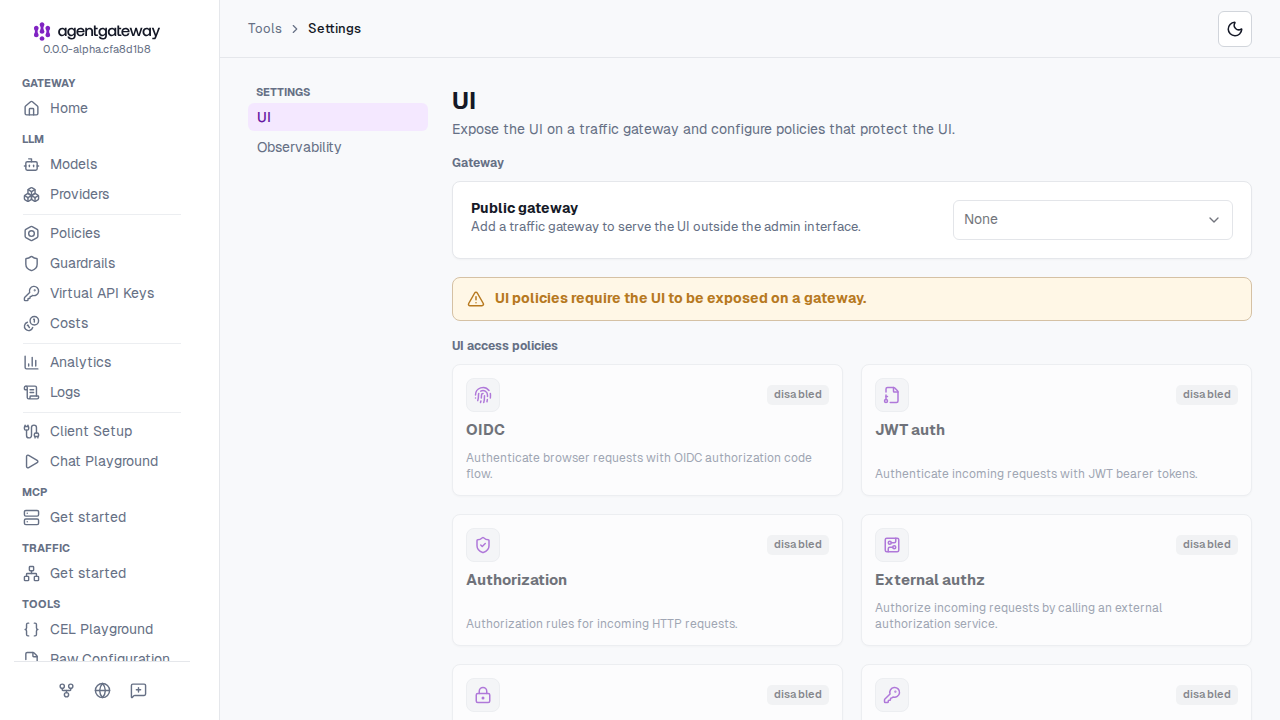
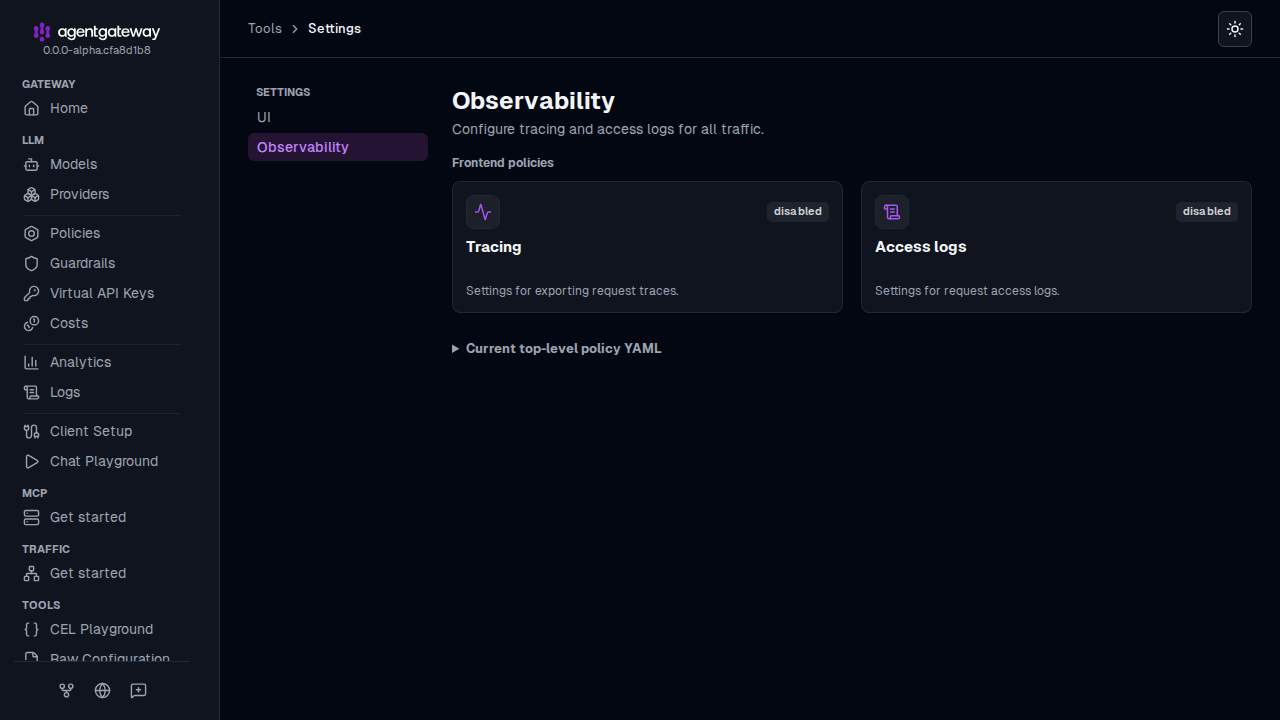
Observability: Shows the Tracing and Access logs cards, which configure tracing and access logs for all traffic. The UI saves these settings in
frontendPolicies.tracingandfrontendPolicies.accessLog. For more information, see Access logs and Traces.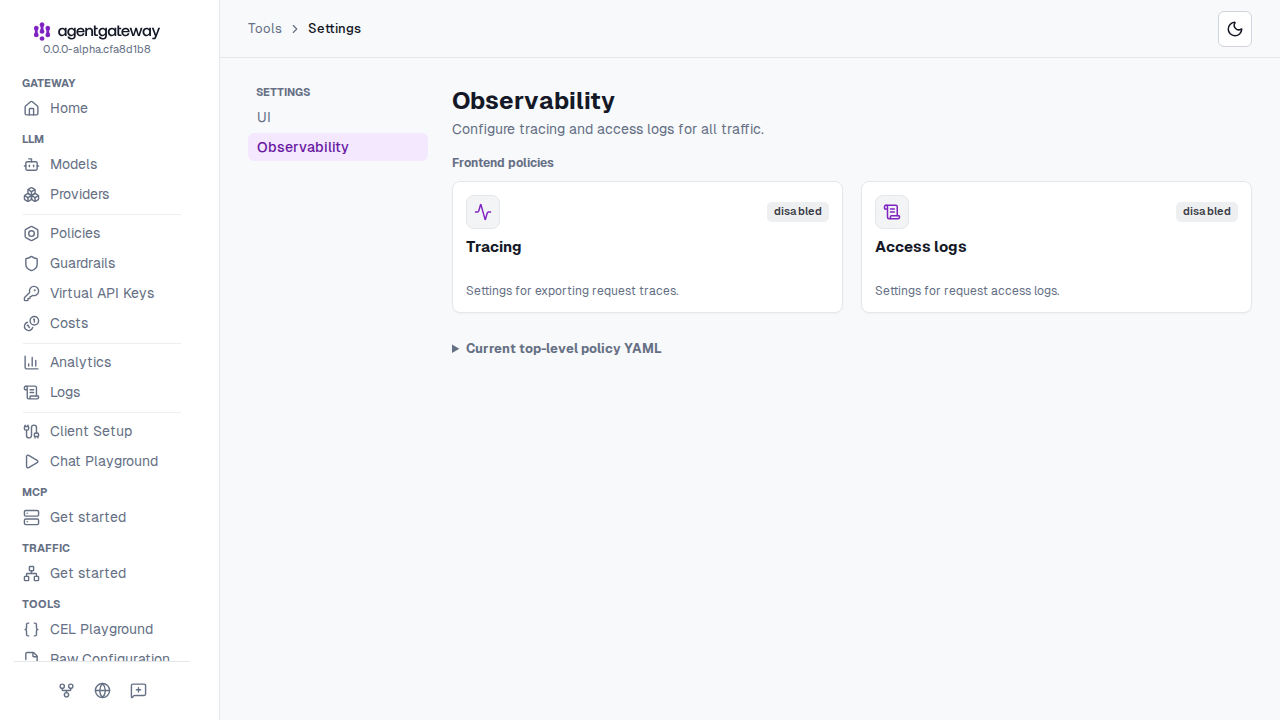
Try out the UI
Use the UI to review what agentgateway loaded and to manage the resources that you can edit from the UI. The following guides configure agentgateway from a file first, and then you can open the same configuration in the UI to see how the UI presents it.
- MCP quickstart to connect an MCP server and try tools in the built-in playground.
- LLM quickstart to route requests to an LLM provider and see the model in the UI.
Edit a resource as YAML
The drawers that edit models, providers, guardrails, MCP servers, gateways, listeners, routes, policies, and virtual API keys have a Raw mode. Use raw mode to set a field that the form does not show, or to paste a configuration snippet.
Open the drawer for a resource. For example, open LLM > Virtual API Keys, and click the Edit key icon for a key.
Click the Raw icon (
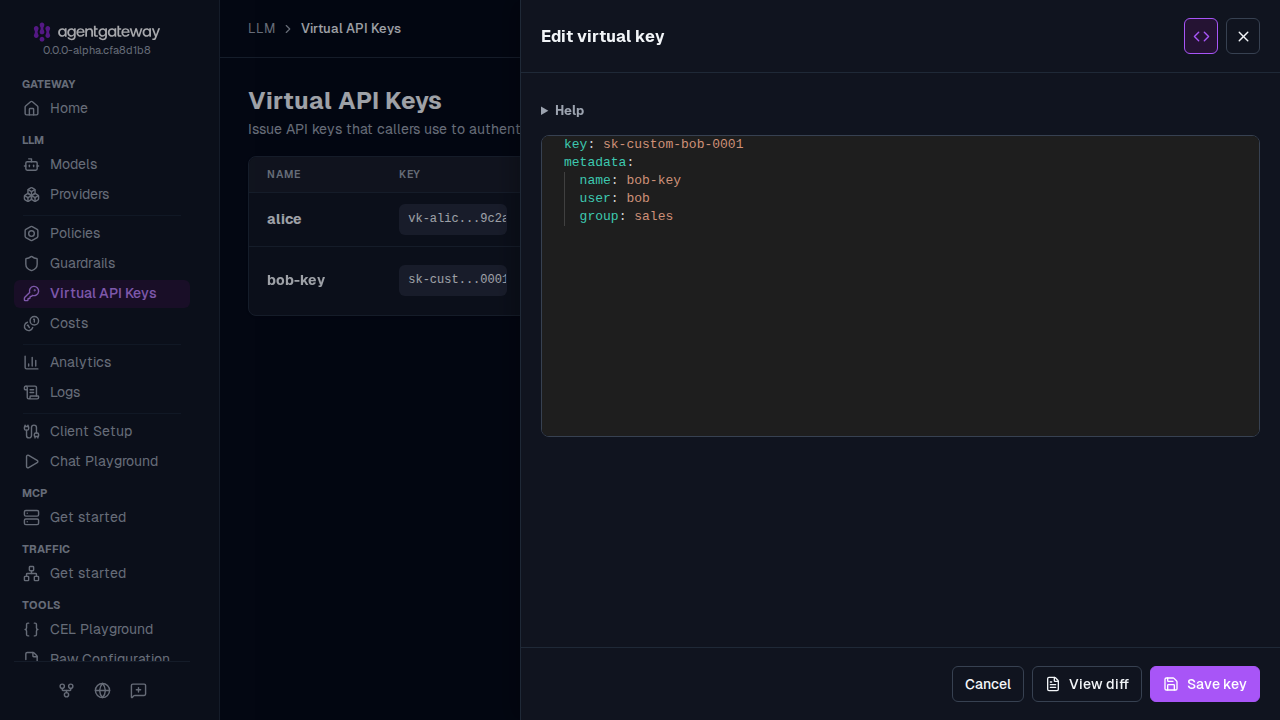
<>) at the top of the drawer.The drawer shows the YAML for that one resource, such as one key, model, route, or policy. It does not show the rest of your configuration. Expand Help to see the fields that the resource accepts.
key: sk-custom-bob-0001
metadata:
  name: bob-key
  user: bob
  group: sales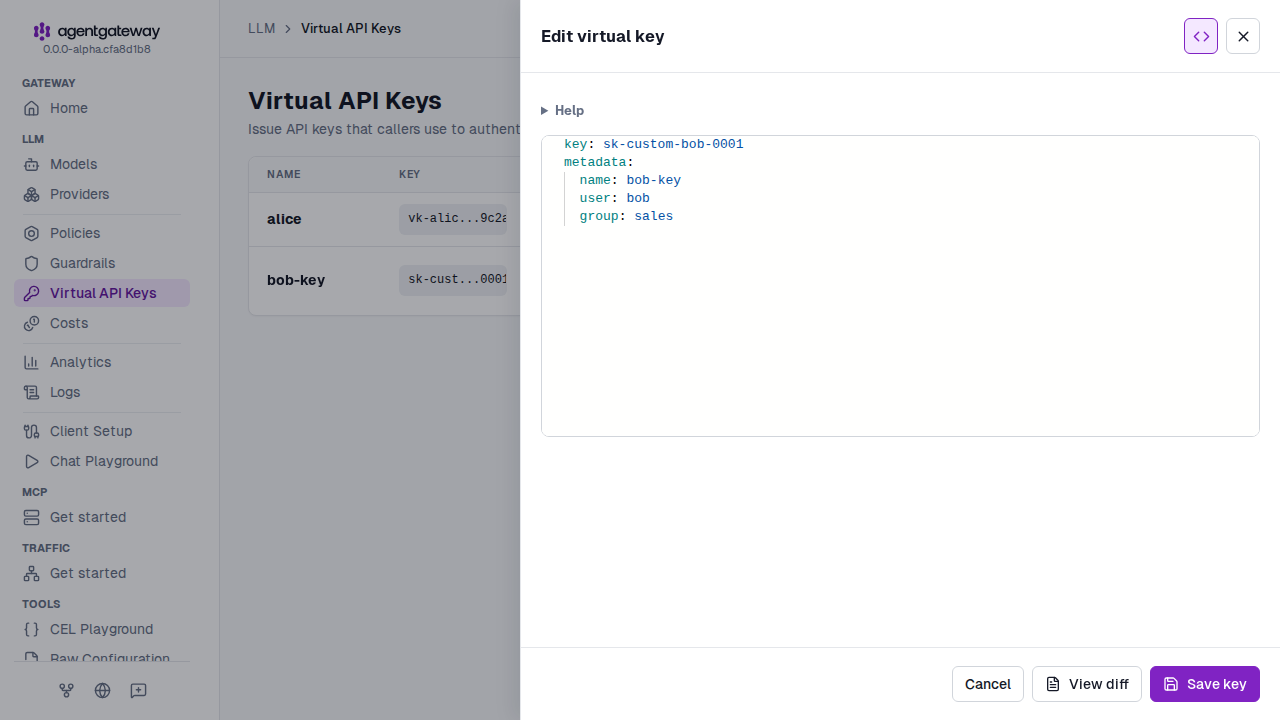
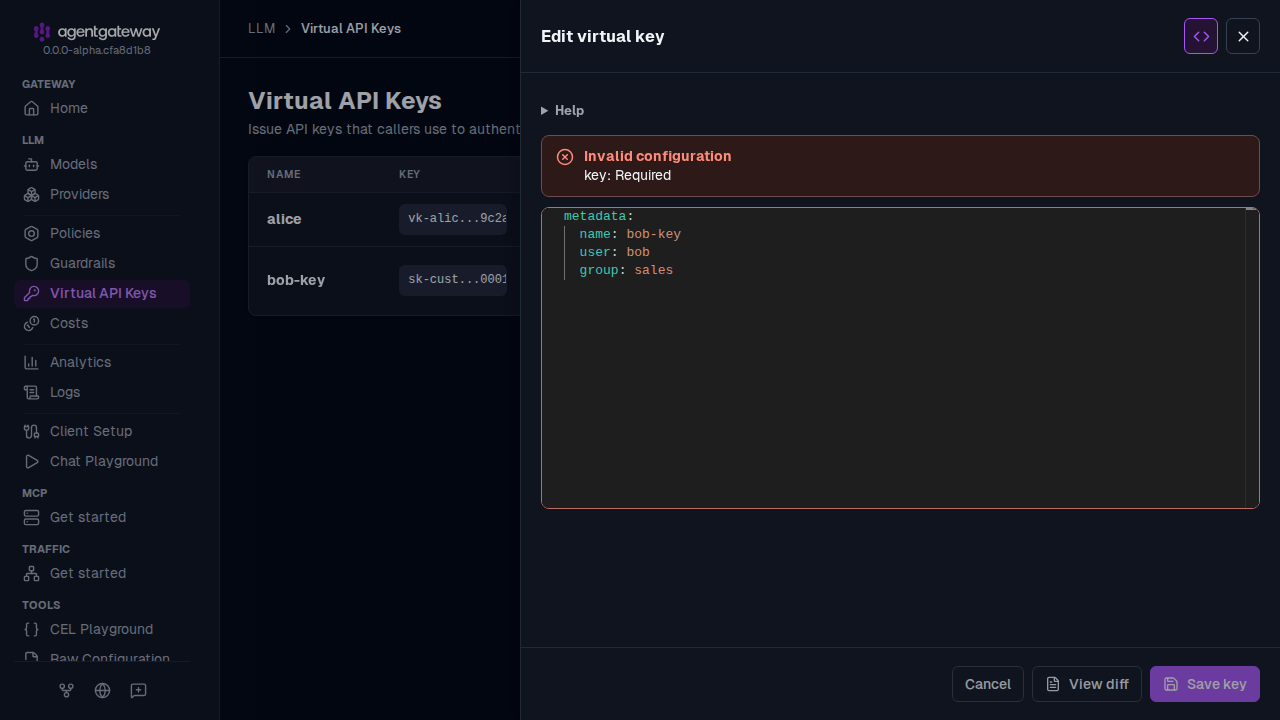
Edit the YAML. The UI checks each edit against the configuration schema. If an edit is not valid, the drawer shows an Invalid configuration banner with the first error, and you cannot save. For example, if you delete the
keyfield of a virtual API key, the banner reports thatkeyis required.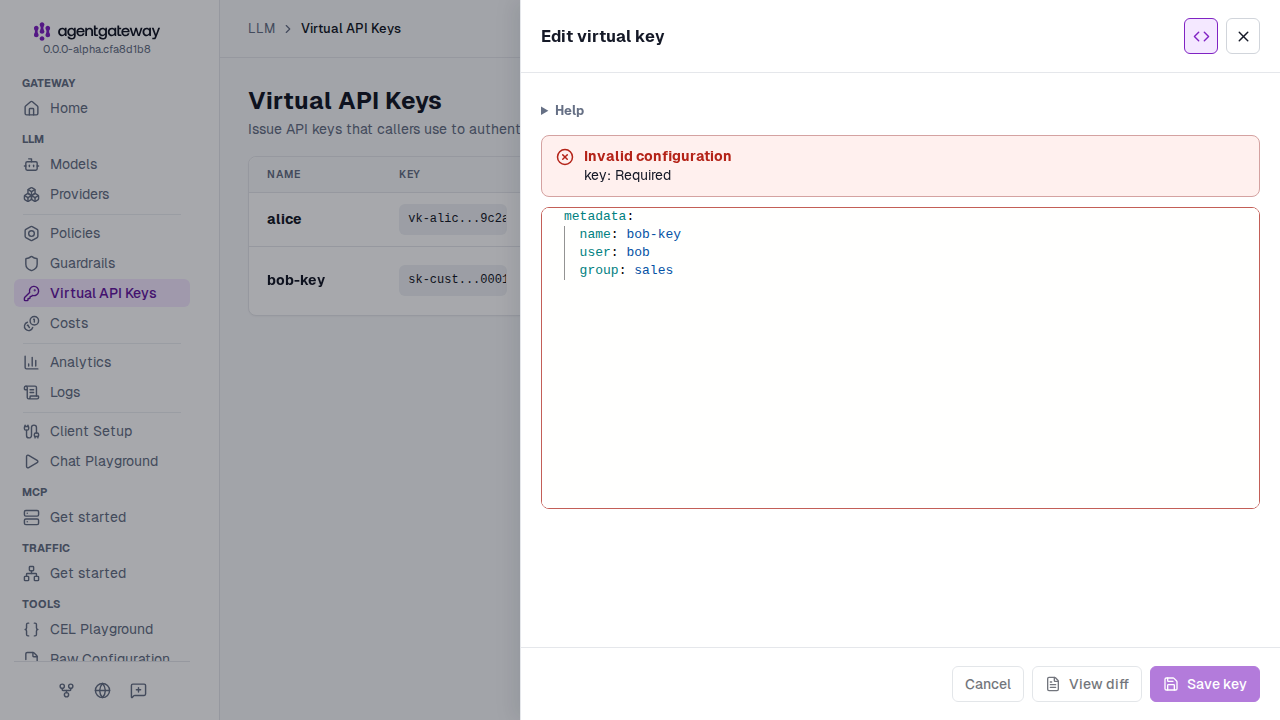
Optional: To return to the form, click the Raw icon again. The form keeps your last valid edit and drops any text that is not valid. If the form cannot show a value, such as a field that has no form control, the drawer stays in raw mode. The tooltip on the Raw icon explains why.
Click the save button, such as Save key. To check the change first, click View diff.
To work with the whole configuration instead of one resource, open Tools > Raw Configuration.
Save changes from the UI
Whether the UI can save the changes that you make depends on your storage mode. In the binary and Docker installations, the UI writes to your configuration file by default. In the Helm installation, the ConfigMap is read-only and a save fails unless you switch the chart to database mode. For more information, see Configuration storage.
The UI checks a change before it writes the configuration file. If the change is not valid, the save fails with an error and the file does not change.
If you edit the file outside the UI and agentgateway rejects the reload, the UI shows a Configuration reload failed banner. Agentgateway keeps running the previous valid configuration. The UI and /api/config/effective show the file on disk, including the rejected change. To retry the reload, fix the file and save it again.
Generate LLM client settings
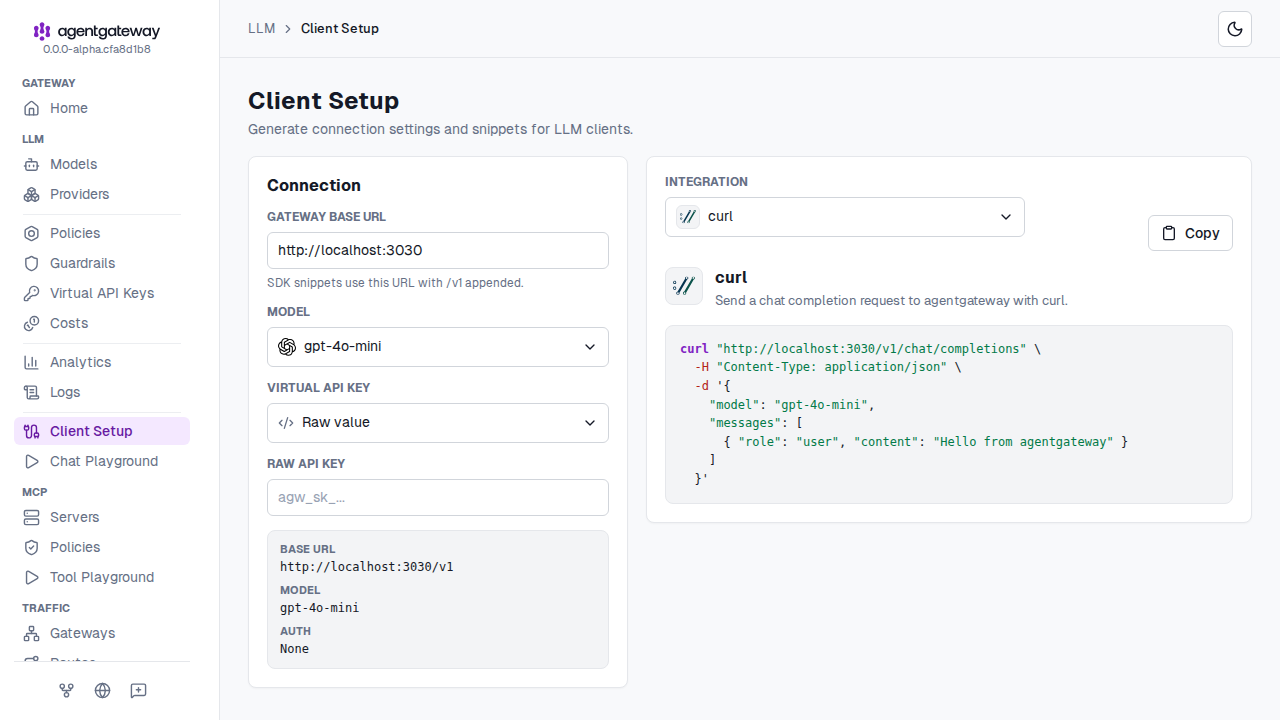
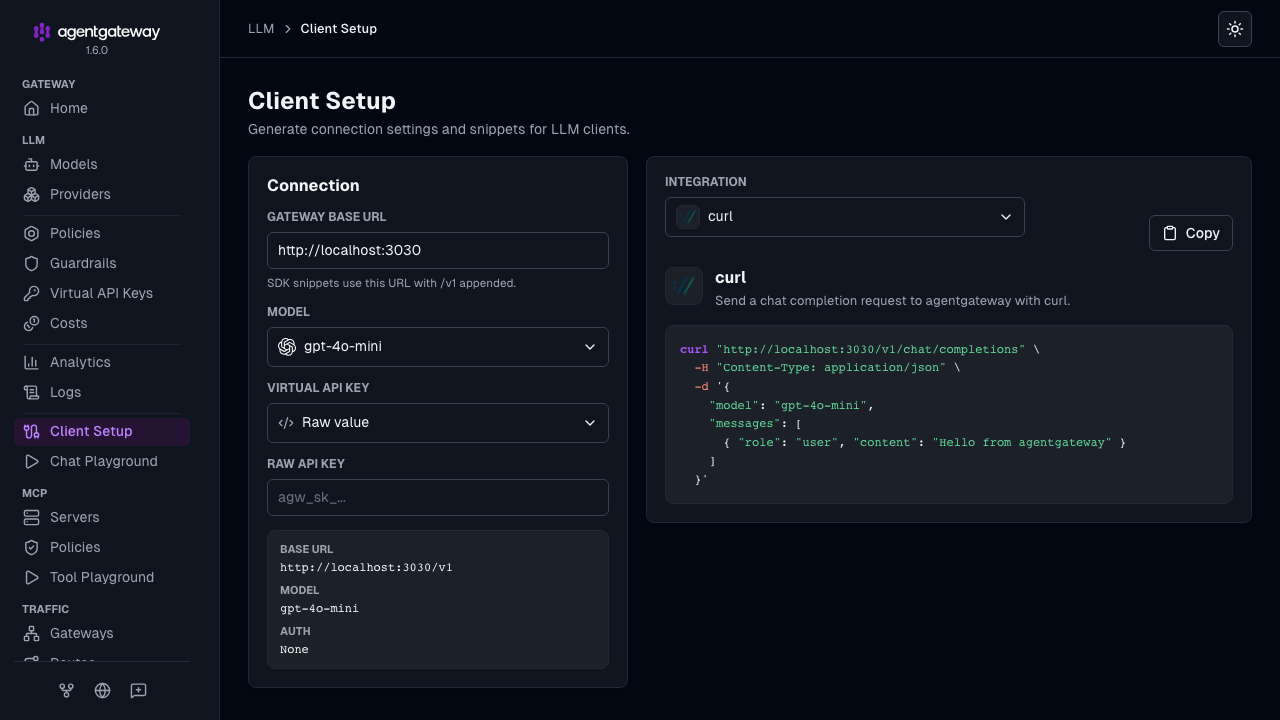
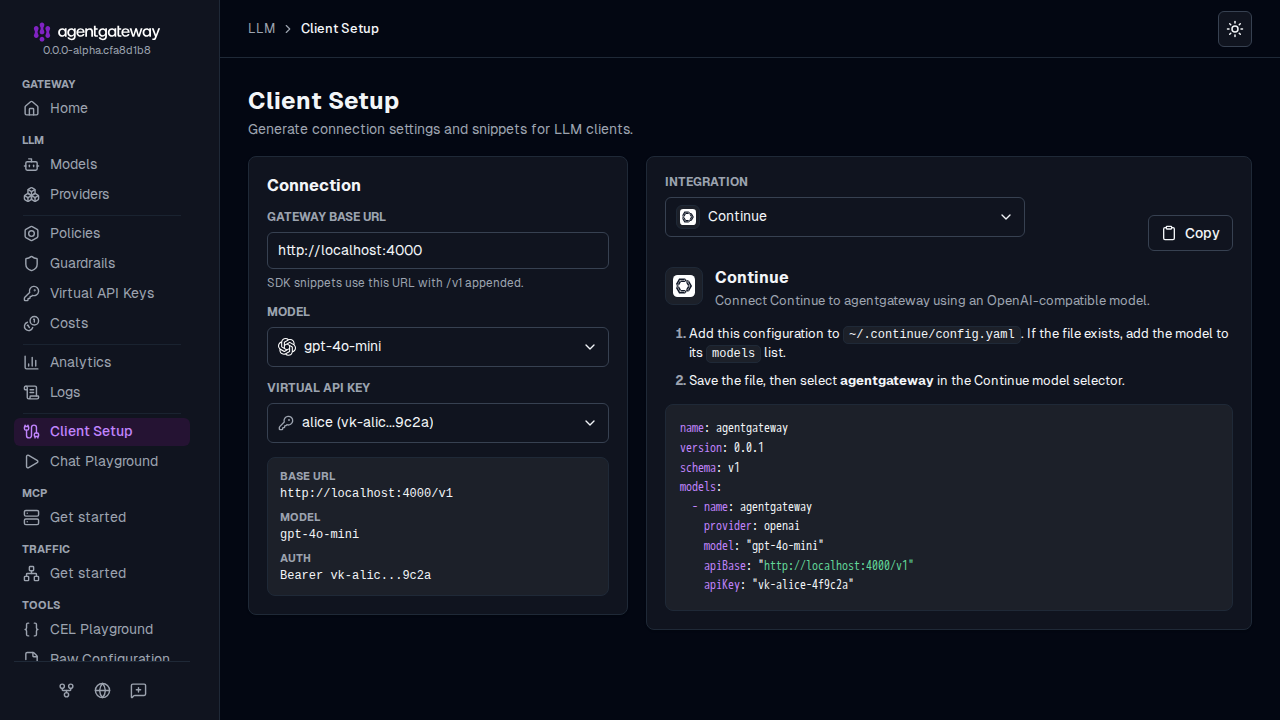
For an example of using the UI to set something up, use the LLM > Client Setup page. It generates connection settings and snippets for curl, Claude Code, Claude Desktop, Codex CLI, OpenCode, Goose, Cursor, GitHub Copilot, Continue, Windsurf, and the OpenAI JavaScript and Python SDKs. The page also includes a Pi recipe that writes baseUrl and apiKey values into ~/.pi/agent/models.json. The Continue recipe shows a model entry for ~/.continue/config.yaml. For the rest of the Continue setup, see Continue.
Configure at least one LLM model and, if the gateway requires client authentication, a virtual API key.
Open the LLM > Client Setup page in the UI, such as http://localhost:15000/ui/llm/client-setup.
Review the Gateway base URL, and select a model and virtual API key.
Select the client from the Integration dropdown, and copy the generated settings or snippet.
For example, select Continue to get a model entry for
~/.continue/config.yaml.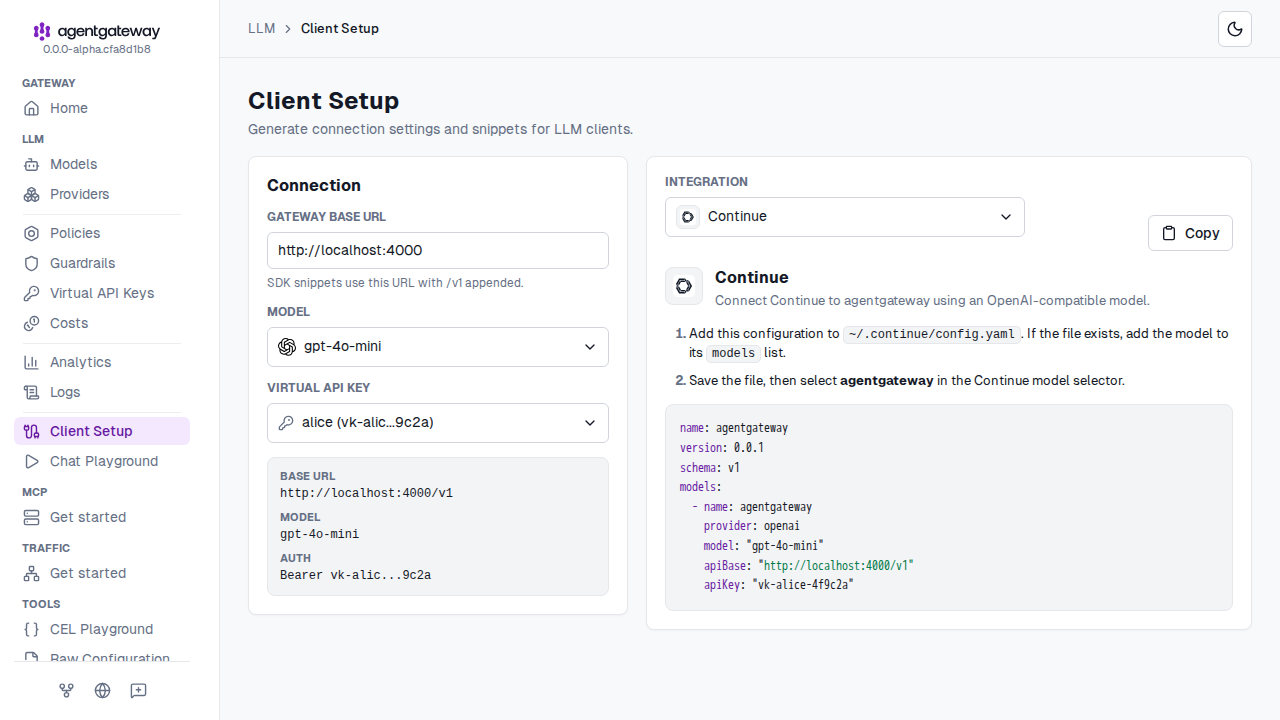
Client Setup fills in Gateway base URL from the gateway that serves LLM traffic. If the same gateway also serves the UI, Client Setup uses the address in your browser instead, so the URL keeps the host, scheme, and port of a reverse proxy in front of agentgateway. Check the URL before you copy a snippet, and change it if clients reach agentgateway through a different address. The snippets appear only when Gateway base URL has a value.
Client Setup does not create a route, model, authentication policy, or provider credential. It generates client-side values from the configuration that already exists. For client-specific prerequisites, see LLM clients.
The selected model appears only in recipes that accept a model setting. For example, the Claude Desktop recipe outputs a gateway URL and API key, but does not configure a model name in Claude Desktop.
Next steps
- Serve the UI on its own gateway so that UI traffic and proxy traffic do not share a port.
- Secure the UI with an OIDC login.
- Expose the UI on your own HTTPS hostname.
- Choose where configuration is stored so that the UI can save your changes.